Skip to Main Content

How to Find Library Films with Captions or Transcripts

Librarian

Profile Photo
SHSU Librarian
Contact:
936-294-1614
lib_ref@shsu.edu

Purpose

This guide will show you how to find films available from the Library that include captions or transcripts for greater accessibility.

Options for Where & How to Search

To view all the library databases that provide access to online films:

  1. Start at the library homepage.
  2. Click on the Articles & More search tab, near the center of the page.
  3. Click on Video / Films Online.


  4. Then click on one of the video databases. They are each a bit different, though you can always search by title. More detailed instructions for a few specific databases are provided below.

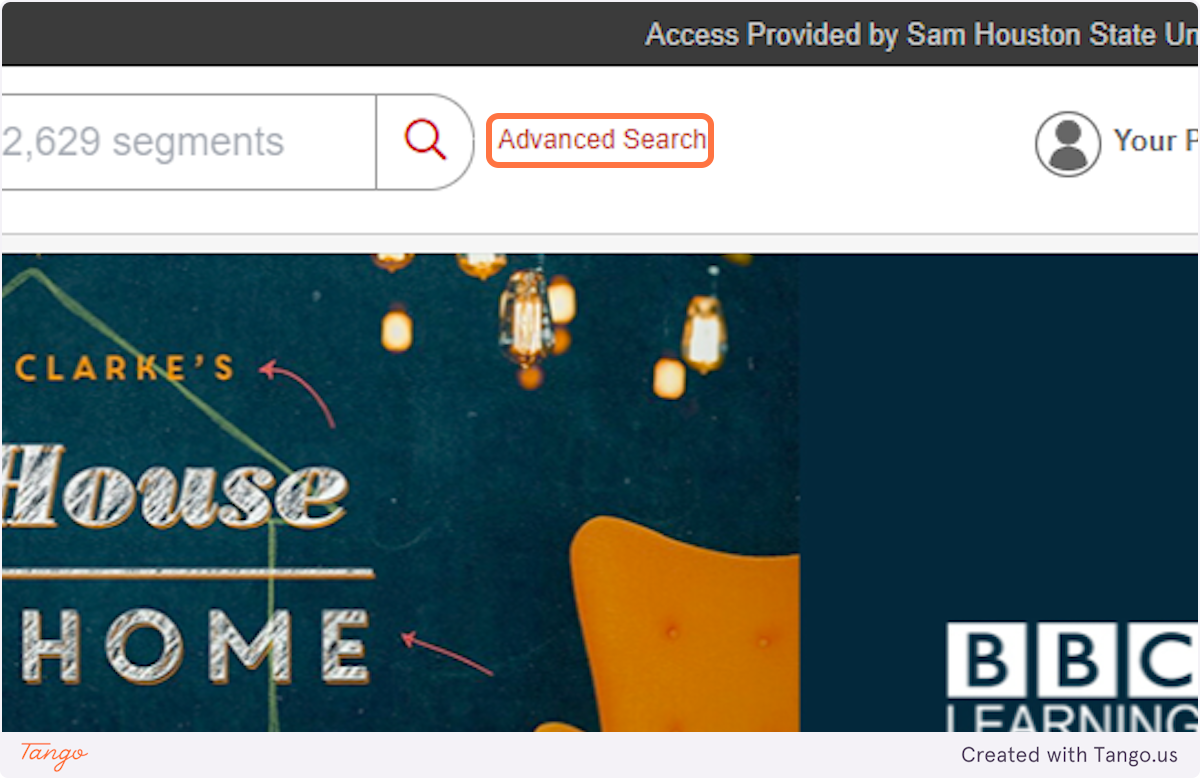
1. To start, login to Films on Demand with your SHSU username and password. Then click on Advanced Search.

In the Films on Demand database, click on Advanced Search.

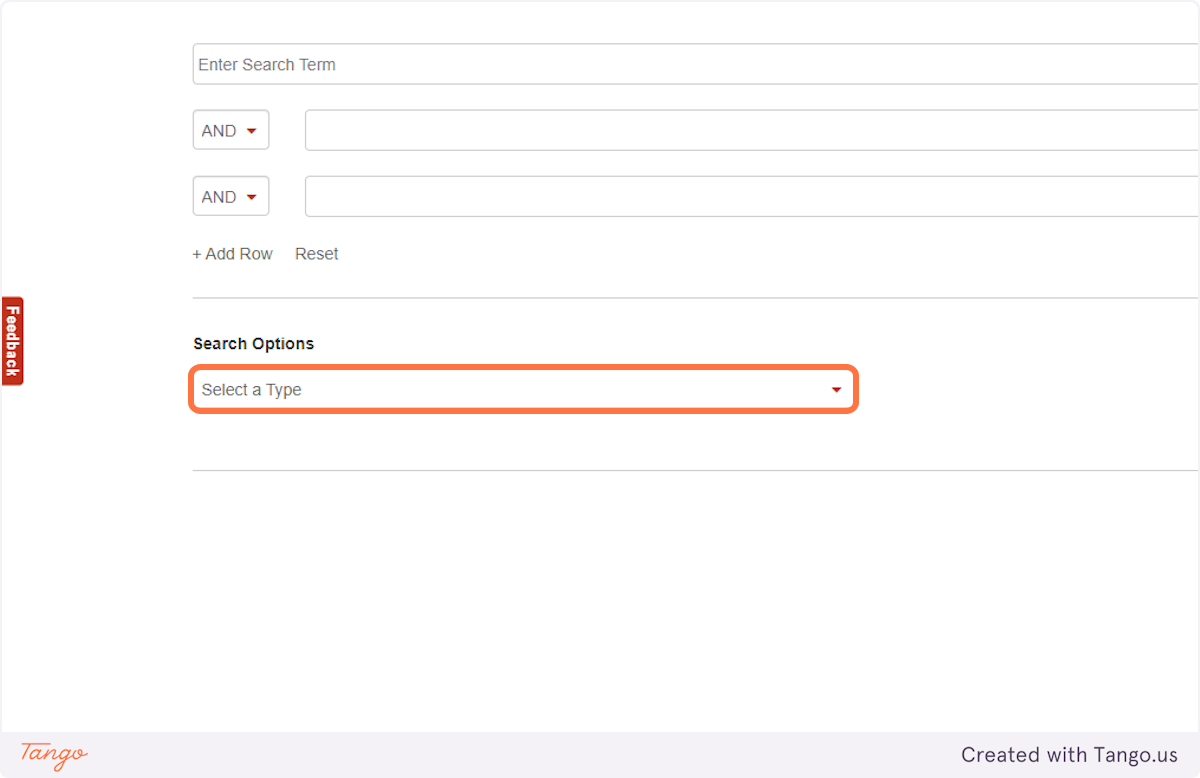
2. Click on Select a Type

Click on Select a Type

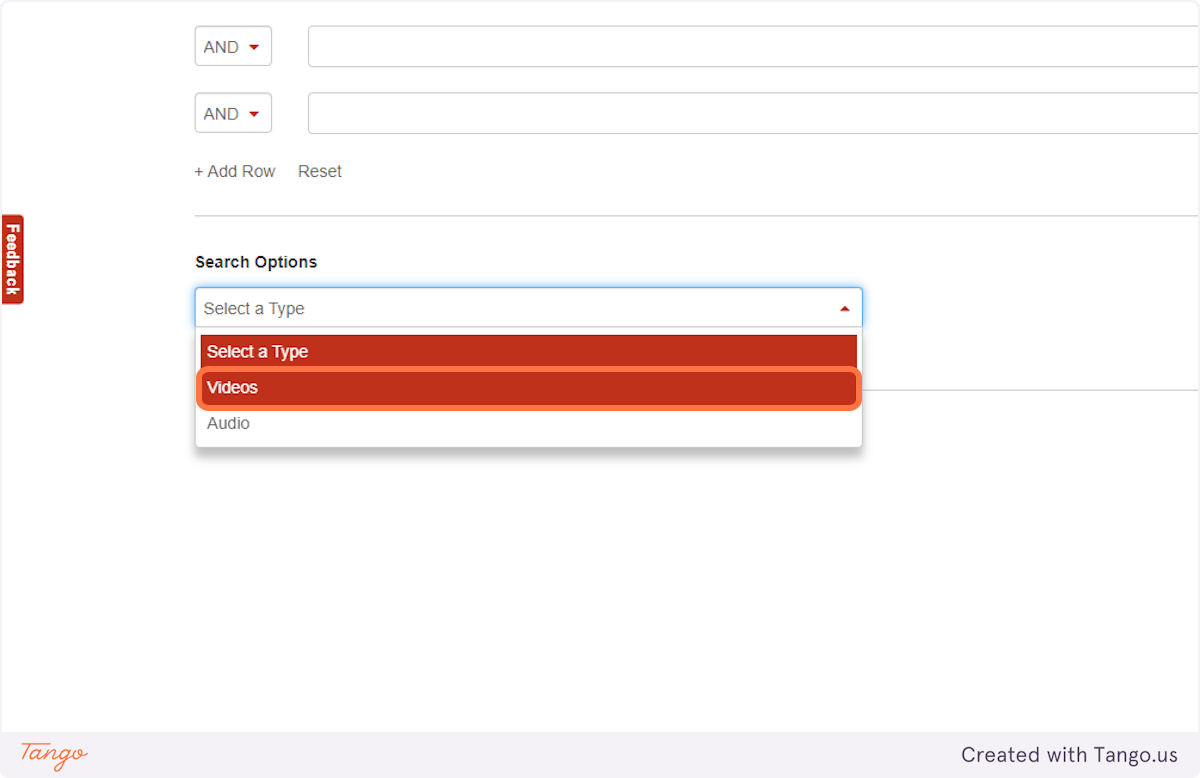
3. Choose Videos

Choose Videos

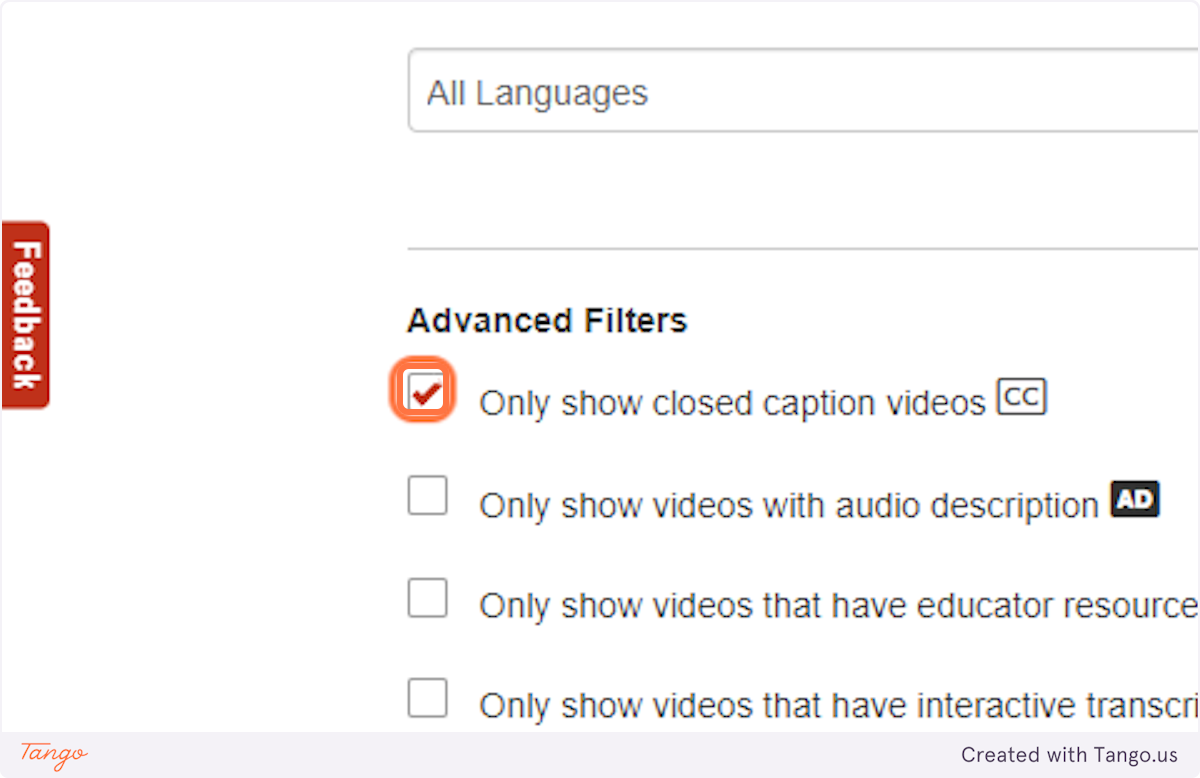
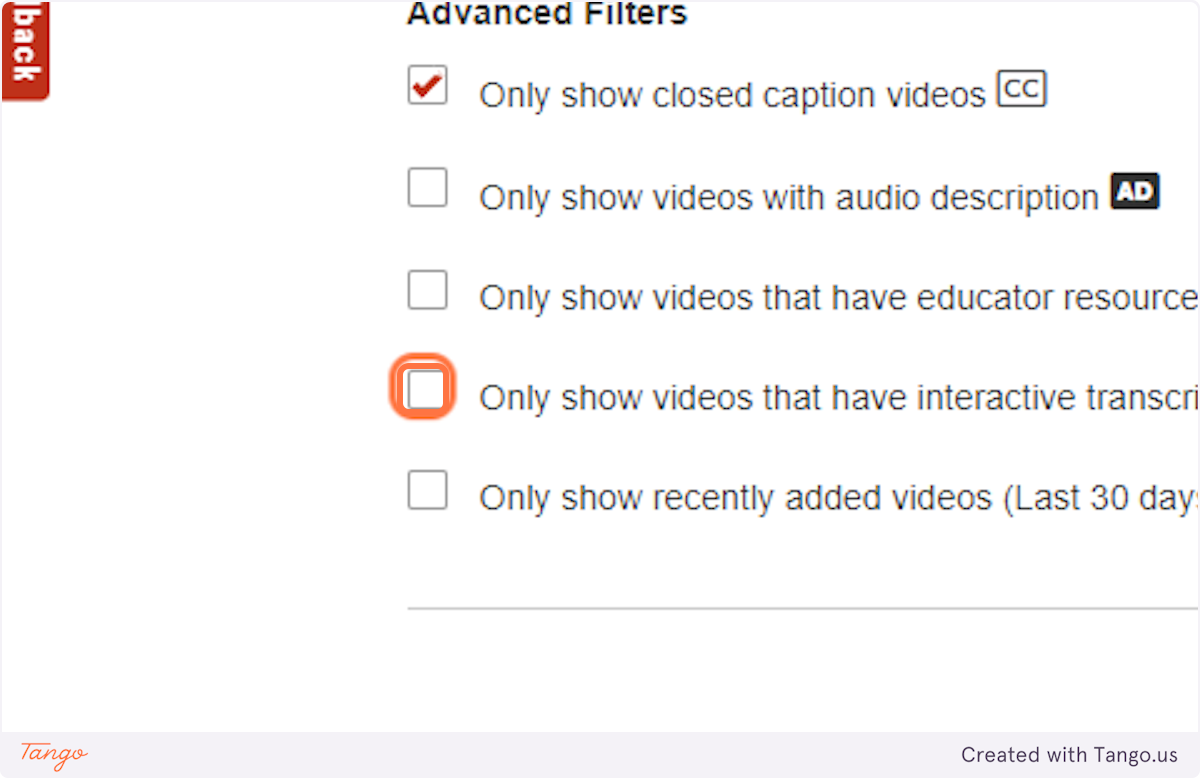
4. Check "Only show closed caption videos"

Check "Only show closed caption videos"

5. Alternatively, you could choose "Only show videos that have interactive transcripts" or "Only show videos with audio description."

Alternatively, you could choose "Only show videos that have interactive transcripts" or "Only show videos with audio description."

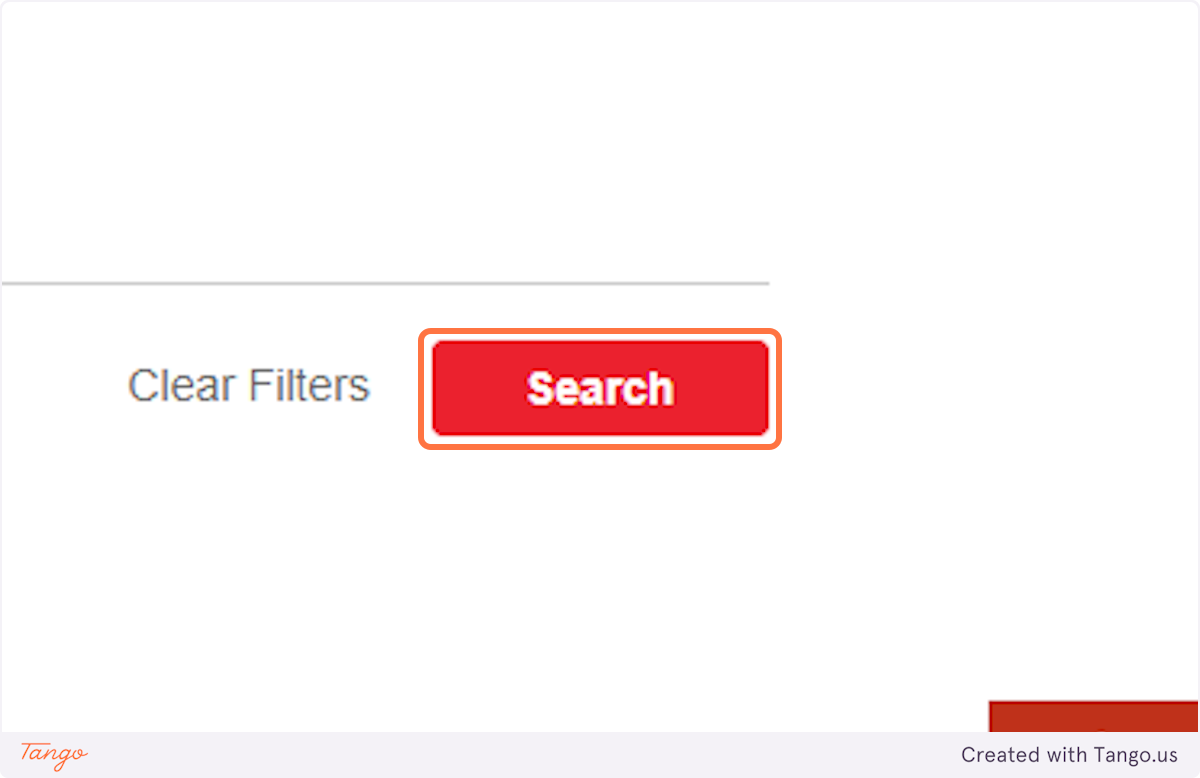
6. Click on Search

Click on Search

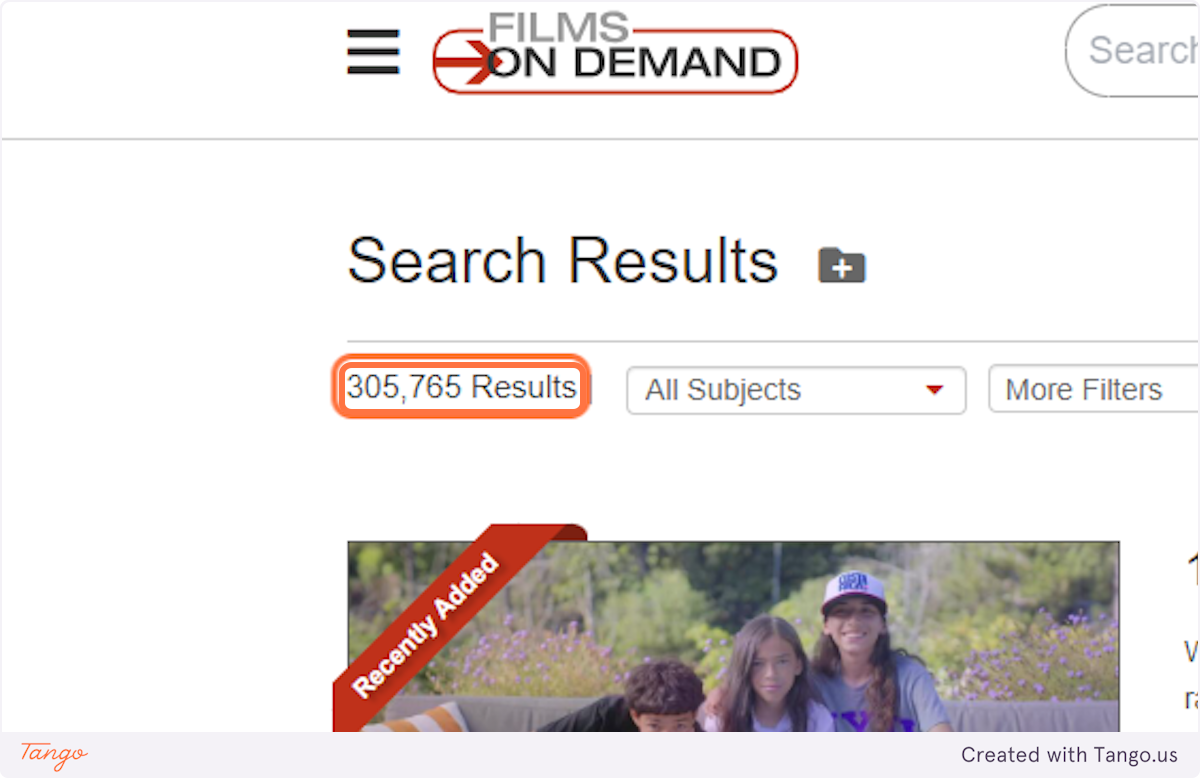
7. The database shows how many results have been found. You can of course choose filters at this point, or go back to the search page and add topical keywords to your search, if you want to make your search more specific.

The database shows how many results have been found. You can of course choose filters at this point, or go back to the search page and add topical keywords to your search, if you want to make your search more specific.

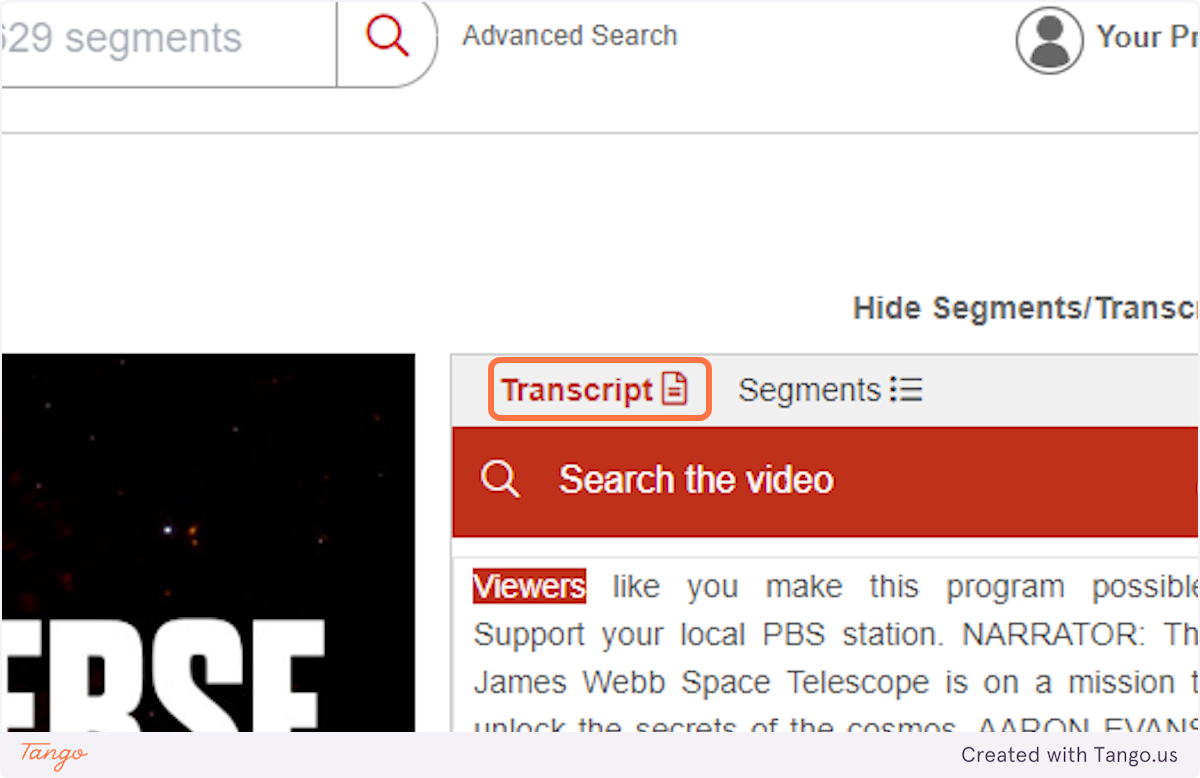
8. When you are reviewing an individual video, click on "Transcript" in the right-hand pane to see whether a transcript is available.  

When you are reviewing an individual video, click on "Transcript" in the right-hand pane to see whether a transcript is available.  


Creation Date: June 27, 2023
Created By: Erin Owens
 

Academic Video Online does not support searching specifically for captions. Instead, follow the steps below to search for videos of interest and then verify whether they have captions or transcripts.


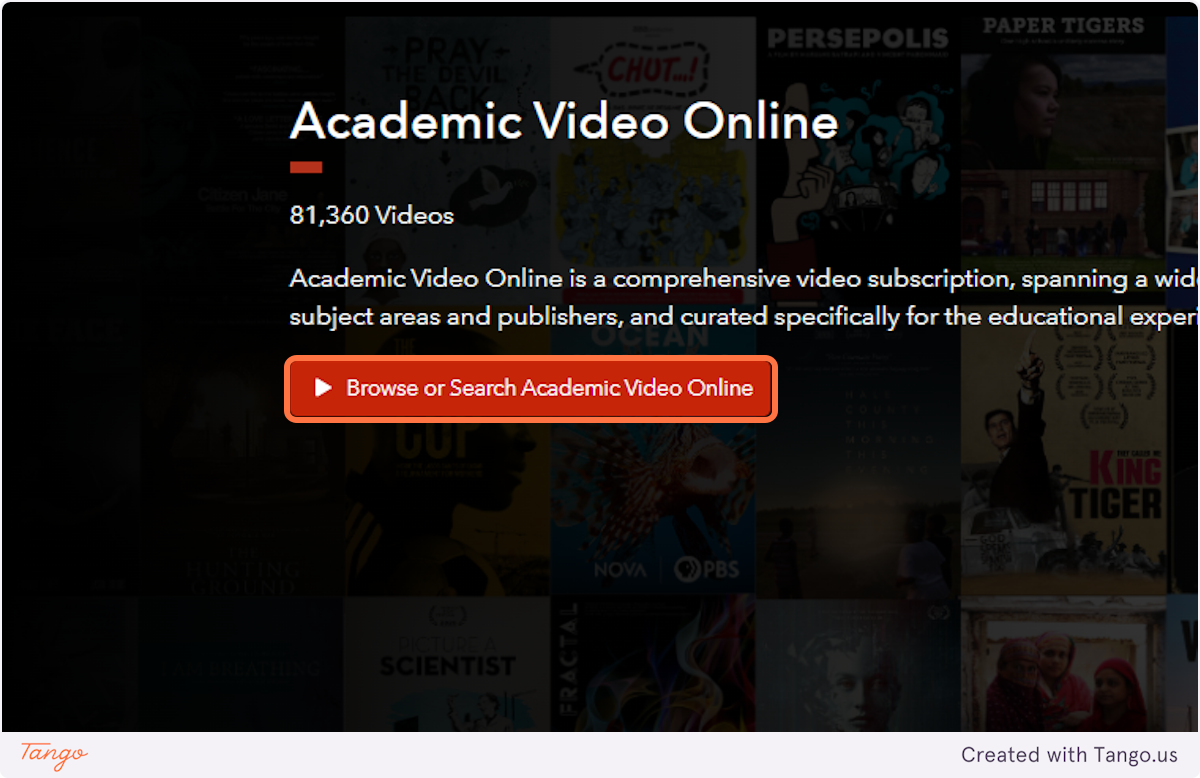
1. To start, login to Academic Video Online with your SHSU username and password. Then click on Browse or Search Academic Video Online

To start, login to Academic Video Online with your SHSU username and password. Then click on Browse or Search Academic Video Online

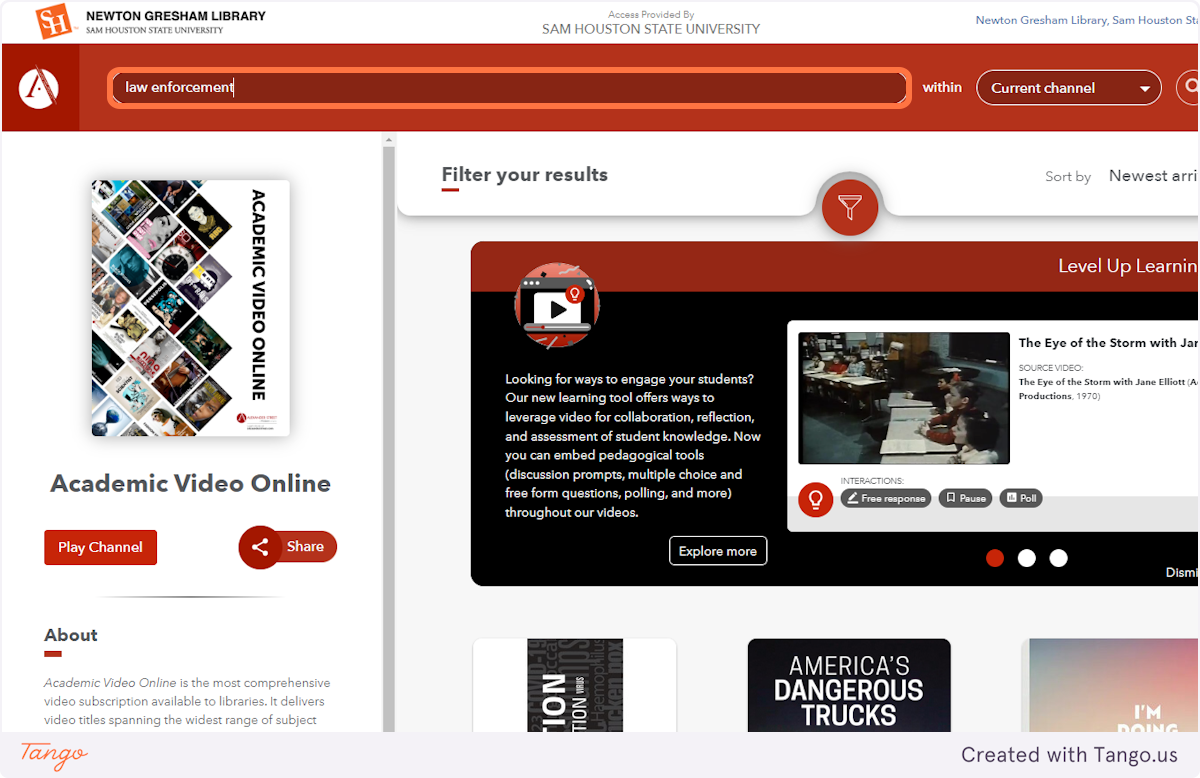
2. Click on the magnifying glass icon at the upper right to open the search bar, then enter your topical keywords, such as "law enforcement"

Click on the magnifying glass icon at the upper right to open the search bar, then enter your topical keywords, such as "law enforcement"

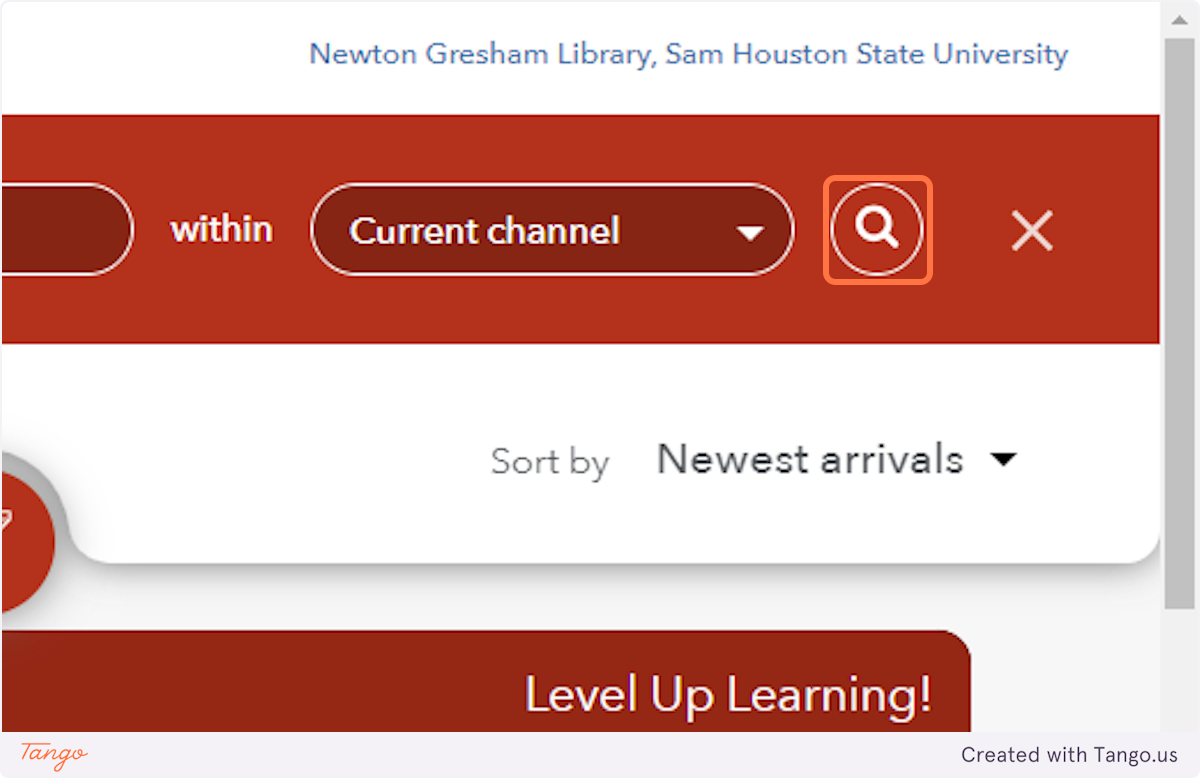
3. Click on the magnifying glass icon again to begin the search

Click on the magnifying glass icon again to begin the search

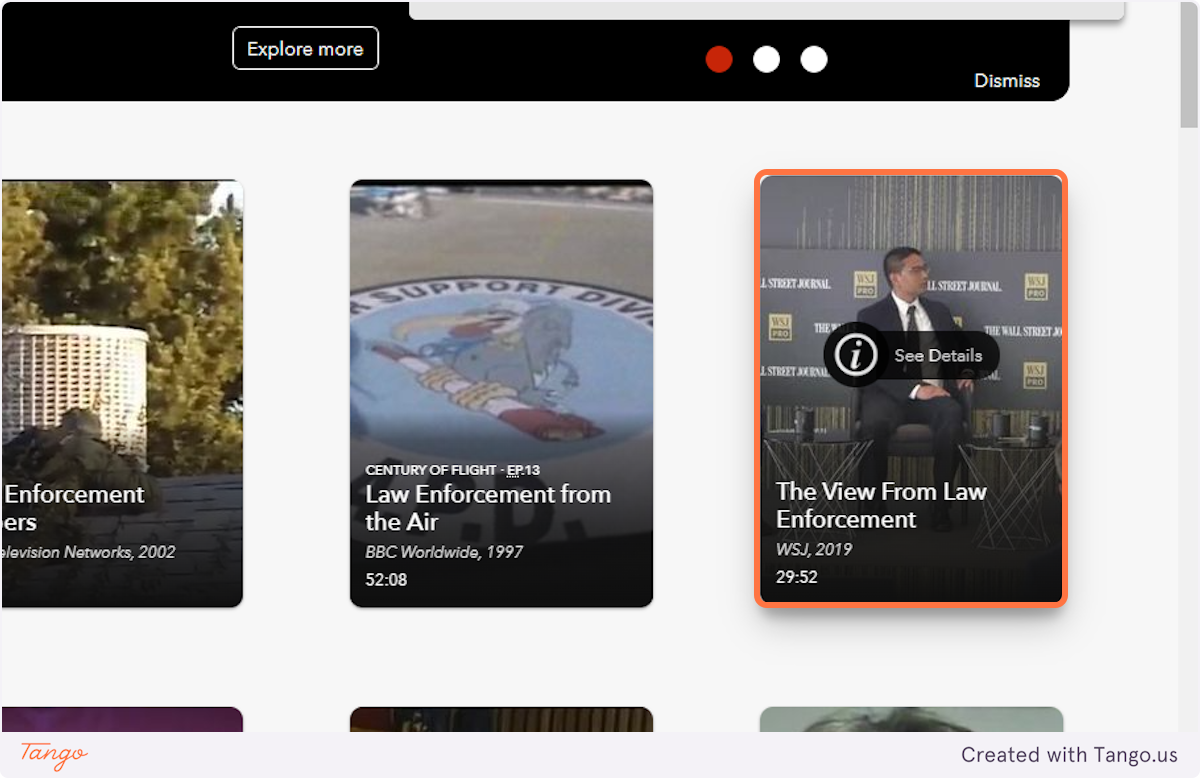
4. Click on a specific video of interest

Click on a specific video of interest

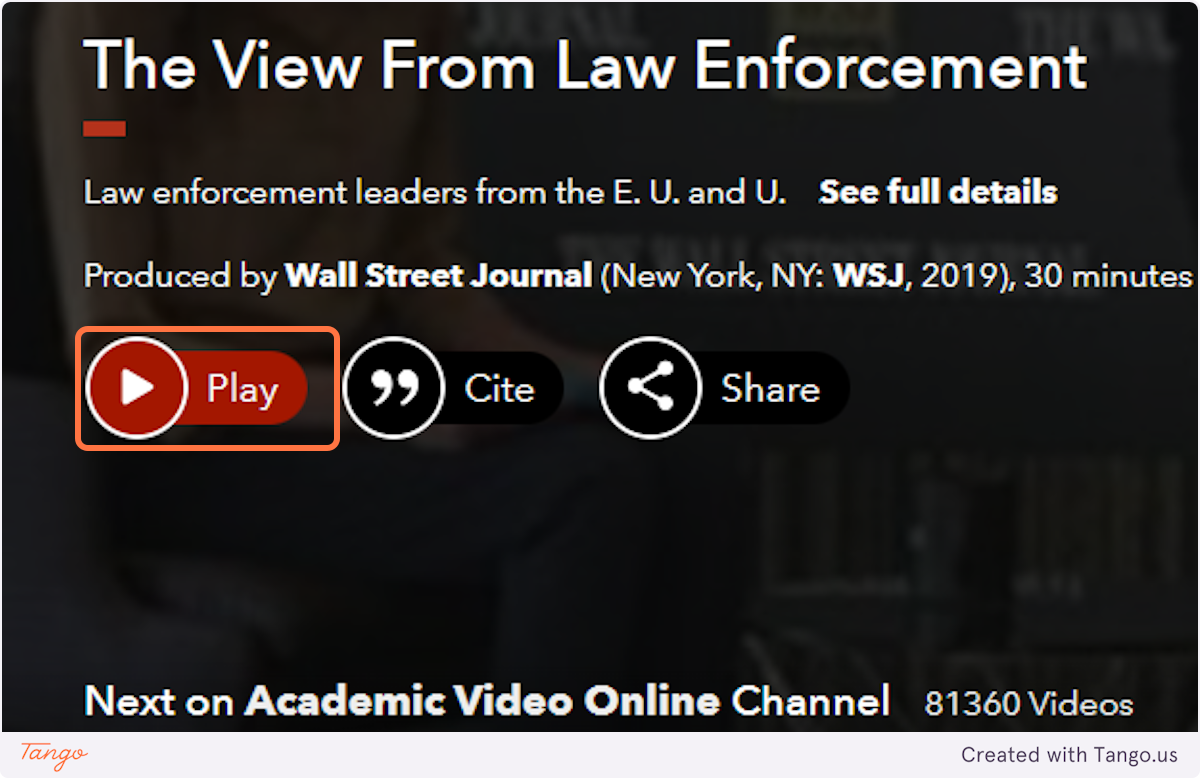
5. View additional details of the video if desired. When ready to watch, click on Play

View additional details of the video if desired. When ready to watch, click on Play

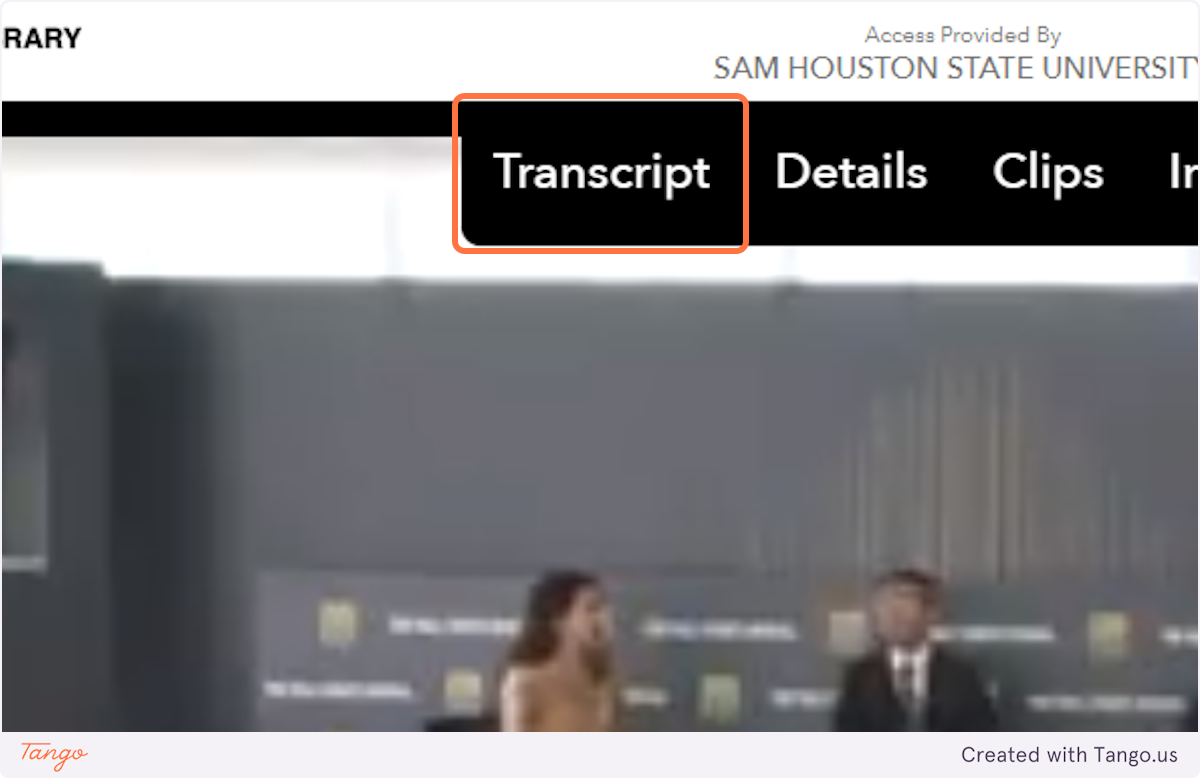
6. Click on the Transcript tab at the top of the video to view the film's transcript (when available)

Click on the Transcript tab at the top of the video to view the film's transcript (when available)

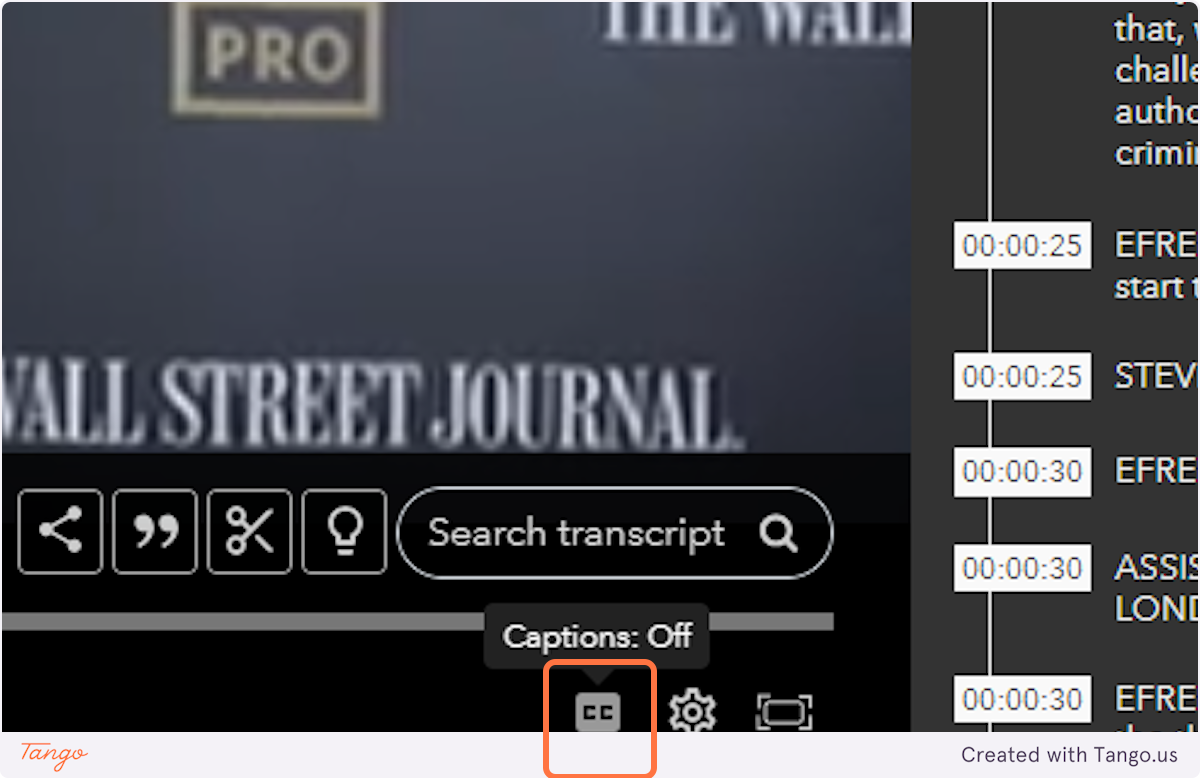
7. Click on the Closed Captions icon below the video to turn on captions (when available)

Click on the Closed Captions icon below the video to turn on captions (when available)


Creation Date: June 27, 2023
Created By: Erin Owens

Kanopy does not support searching specifically for captions. Instead, follow the steps below to search for videos of interest and then verify whether they have captions or transcripts.


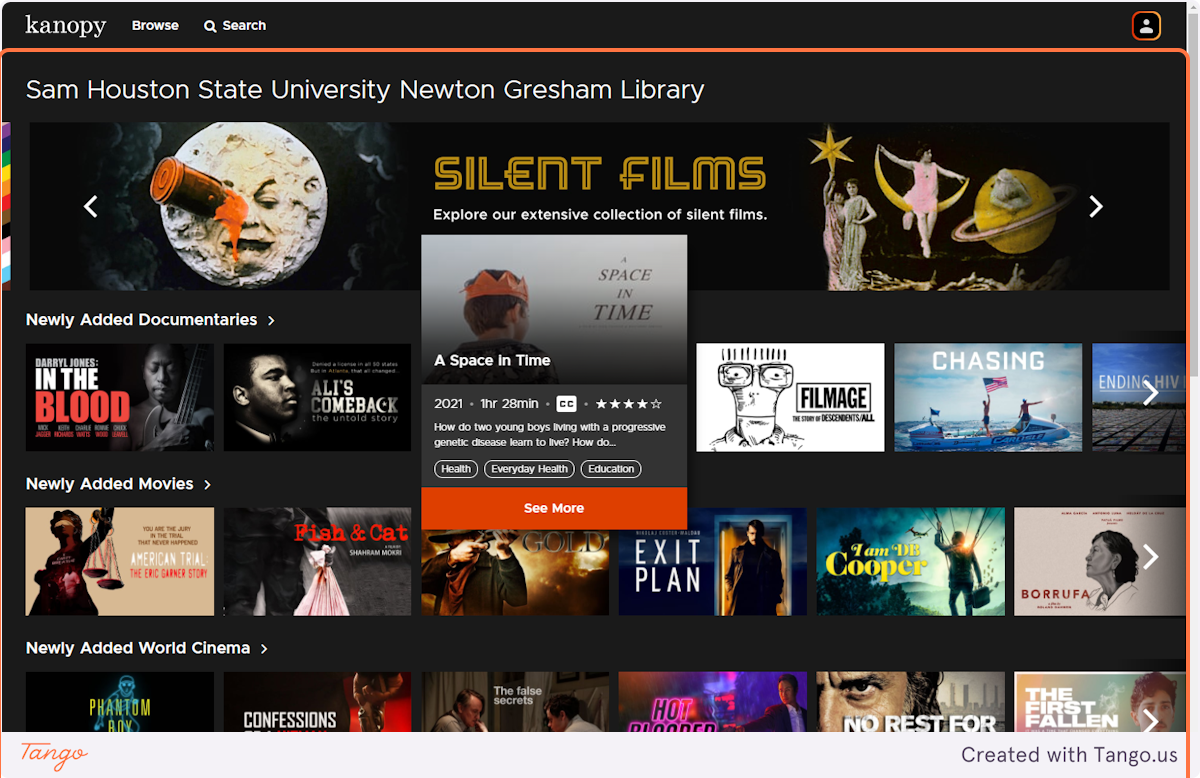
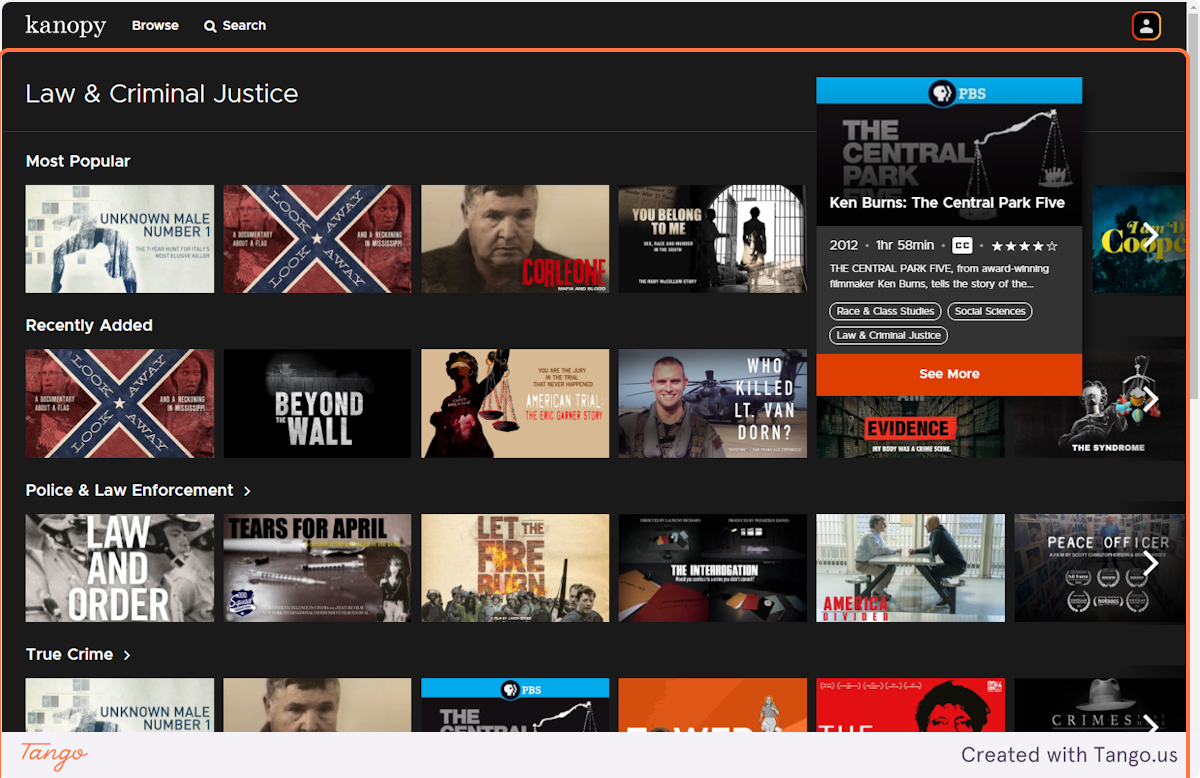
1. To start, login to Kanopy with your SHSU username and password. Roll your cursor over any film displayed to see the "CC" icon which identifies that the film has captions. Click on the item if you want to read more details or watch the film.

To start, login to Kanopy with your SHSU username and password. Roll your cursor over any film displayed to see the "CC" icon which identifies that the film has captions. Click on the item if you want to read more details or watch the film.

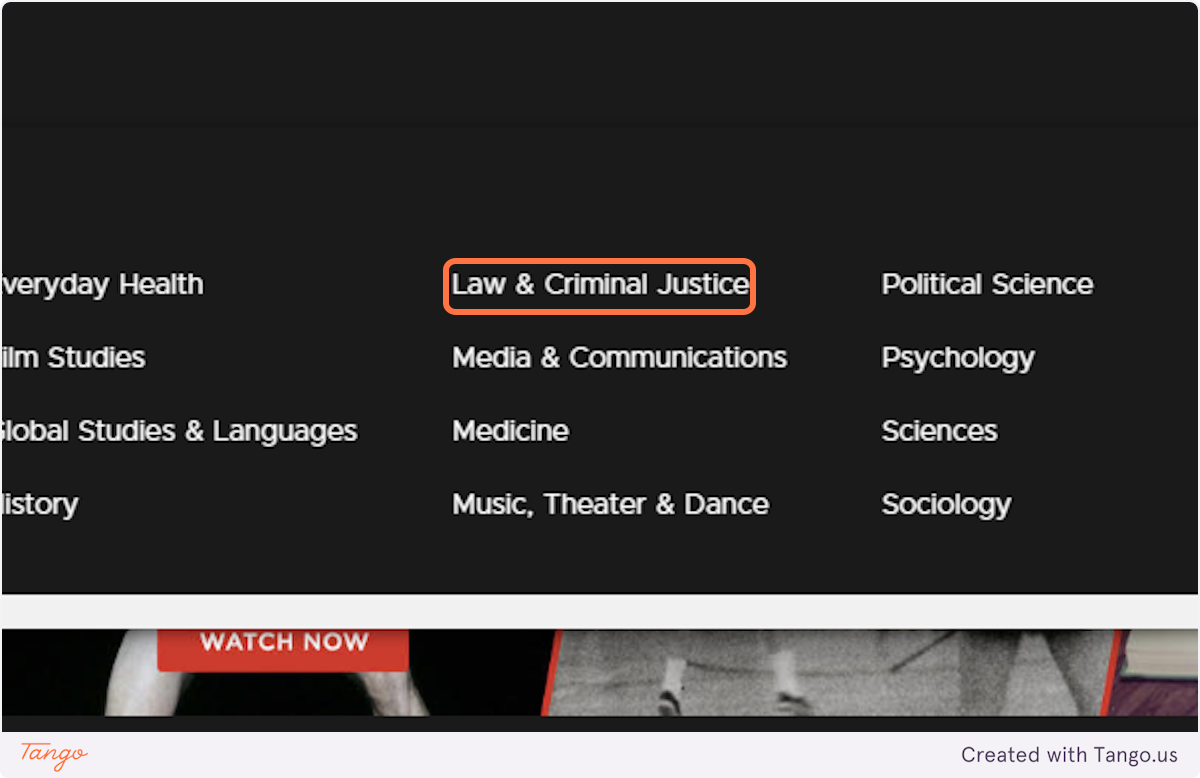
2. You can also search by keywords or use the Browse menu to see films in a subject area, such as Law & Criminal Justice

You can also search by keywords or use the Browse menu to see films in a subject area, such as Law & Criminal Justice

3. In any set of results, roll over a specific film and look for the "CC" icon.

In any set of results, roll over a specific film and look for the "CC" icon.


Creation Date: June 27, 2023
Created By: Erin Owens

Other video databases will operate in essentially the same way. You’ll want to explore them, depending on what content you hope to find.

If you want a specific film but can't find it through the library, contact your subject librarian for assistance and to discuss whether we can add it to our collection.


Newton Gresham Library | (936) 294-1614 | (866) NGL-INFO | Ask a Question | Share a Suggestion

Sam Houston State University | Huntsville, Texas 77341 | (936) 294-1111 | (866) BEARKAT
© Copyright Sam Houston State University | All rights reserved. | A Member of The Texas State University System